User guide
Reading the screen
The color, status, and freshness language Spread Foundry uses everywhere.
Spread Foundry uses color and a few small marks consistently, so once you learn the language you can read any screen at a glance.
Color = meaning, molten = action
Two rules cover almost everything:
- Semantic color carries information. A small, fixed palette:
- Red — blocked / danger / negative.
- Amber — caution / review.
- Green — favored / good (also a positive P/L).
- Gray — neutral / no signal.
- Cyan — fresh / just-updated, and engine overlays (expected-move band, the FerroWave line).
- Molten orange carries action, not data. It marks the live, actionable thing — the primary button, the focus ring, an active tab, a selected row, and the break-even line on a chart. If something is molten, it's the thing to act on.
Status tags
Every saved spread wears its lifecycle state:
- Watching — a tracked idea, no money at risk (outline dot).
- Open — a live position (solid dot).
- Closed — exited, in your history.
Risk-class colors
A candidate's defined-risk character is color-coded: green = defined risk, red = undefined/uncapped tail, amber = pin risk, violet = event stretch, blue = early assignment.
The structure map & payoff
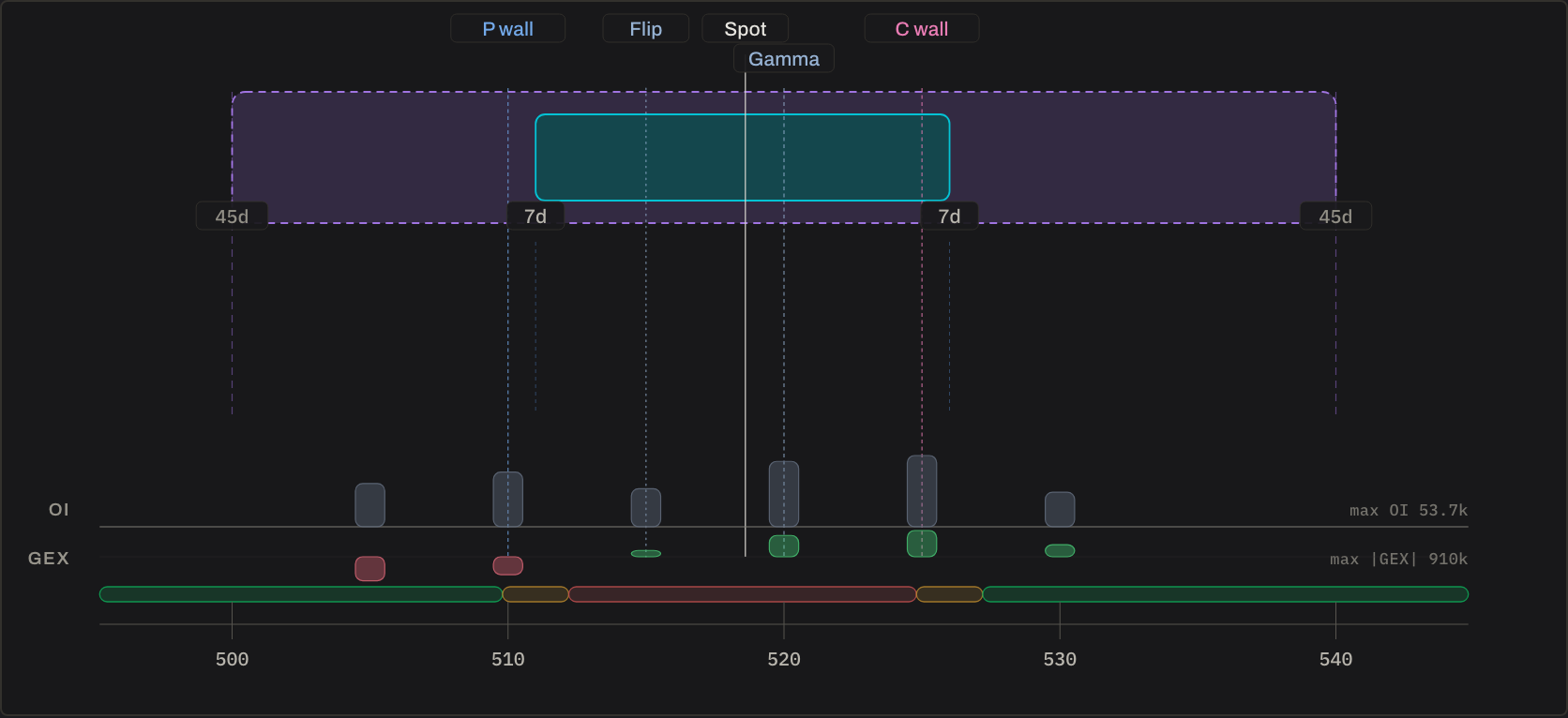
On the structure view: spot and the expected-move band (cyan) frame where price sits; put/call/gamma walls and the flip are the dealer levels. On a position, your legs are cool markers (buy = teal, sell = blue) and the break-even is the molten line — the one warm mark, so your edge price is easy to find. On the payoff, green is profit and red is loss.
Data freshness

Because every number comes from a snapshot, the top bar always tells you which one:
- A freshness indicator shows when the data was last published and how many names it covers.
- A banner appears only when something needs flagging — regenerating, stale ("working from yesterday's data"), degraded (some inputs missing), or failed (showing the last good snapshot). When there's no current snapshot at all, the workspace says so rather than show numbers it can't stand behind.
For launch, Spread Foundry runs on the Standard end-of-day snapshot. Intraday data is planned future work with no launch date attached. Same screens, same colors — the freshness indicator is where any later data cadence will be made explicit.